An Inventory of Screens Inside tk999

An Inventory of Screens Inside tk999
This piece is an inventory, not a review. It lists the screens and modules a user encounters inside tk999, the order in which they appear, and what each surface contains. Nothing here evaluates quality, fairness, or outcomes; the aim is simply to describe the interface as an object, the way one might catalogue the rooms of a building without commenting on the furniture.
The scope is the user-facing application and its web equivalent: the entry screens, the account layer, the wallet, the two main product families (sports and casino-style games), and the auxiliary screens that sit around them. Backend systems, licensing pages, and customer-support scripts fall outside this inventory unless they surface as a visible screen. Where a screen family has internal variation, that variation is noted as a sub-item rather than treated as a separate room.
The entry sequence: from landing to first screen
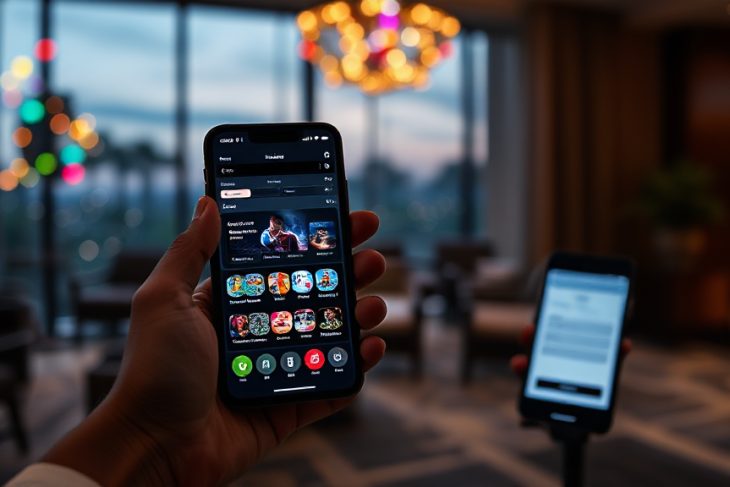
The first surface a visitor meets is the landing view. It is a composite screen rather than a single page: a header with brand marks and language or currency selectors, a promotional carousel, a grid of product shortcuts, and a persistent bottom bar on mobile. The carousel rotates automatically and is the only element on the landing view that changes without user input.
From the landing view, two doors lead inward. The first is registration; the second is login for returning users. Both sit in the same header zone, and both route to short forms. The registration form is the first screen that asks for input rather than offering navigation, which makes it the practical boundary between browsing and participation.
What the registration screen contains
The registration screen is a single-column form on mobile and a two-column layout on desktop. Fields are grouped into identity (name, date of birth), contact (phone or email), and credentials (password, confirmation). A currency selector and a promotional-code field sit below the credentials block. The submit control is anchored at the bottom and remains inactive until the required fields are populated.
What the login screen contains
The login screen is shorter: an identifier field, a password field, a remember-me toggle, and a recovery link. On the mobile build, biometric login appears as an optional secondary control once a session has been established at least once. The recovery link opens a separate screen that asks for the registered contact method and sends a reset instruction.
The account layer: profile, verification, and settings
Once inside, the account layer is reachable from the avatar control in the header. It is a hub screen with a vertical list of destinations rather than a single settings page. The list order is stable: profile details, verification, security, notifications, and responsible-play controls. Each item opens a dedicated screen, and each dedicated screen returns to the hub rather than to the previous product screen.
The profile screen displays the registered identity fields in read-only form, with an edit control that opens a request flow rather than direct editing. The verification screen is a document-upload surface: a file picker, a document-type selector, and a status indicator that moves through pending, approved, and rejected states. The security screen holds password change, session list, and two-factor enrolment.
Notification and responsible-play screens
The notification screen is a toggle matrix: channel (email, SMS, push) against category (promotions, account activity, product updates). Defaults are pre-set, and the screen saves on toggle rather than on a separate submit. The responsible-play screen contains deposit limits, session reminders, and a self-exclusion control; each opens a confirmation step before taking effect.
The wallet family: deposit, withdrawal, and history
The wallet is not one screen but a family of four. The wallet overview shows the current balance, a currency label, and three action buttons: deposit, withdraw, and history. The overview is the only wallet screen that is also embedded as a widget elsewhere in the product, appearing in the header on desktop and in the account tab on mobile.
The deposit screen presents payment methods as a list of tiles, each carrying a name, a logo, and a minimum amount. Selecting a tile expands an inline form for amount and confirmation. The withdrawal screen mirrors this structure but adds a destination-field step and a review screen before submission. The history screen is a filterable table: date range, transaction type, and status, with each row expandable to a detail view.
How the wallet screens connect
Deposit and withdrawal both terminate in a status screen that reports pending, completed, or failed. From that status screen, the only forward routes are back to the wallet overview or into the history table filtered to the relevant transaction. This means the wallet family is a closed loop: a user cannot move from a deposit receipt directly into a game without passing through the overview or the product menu.
The sports area: lobby, event, and bet slip
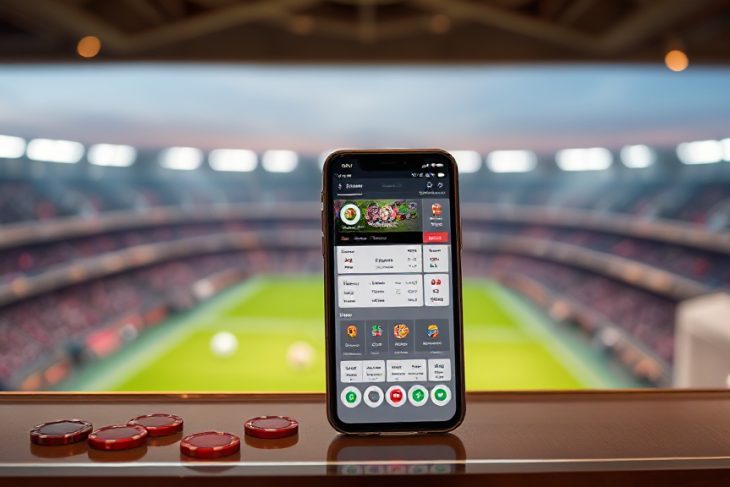
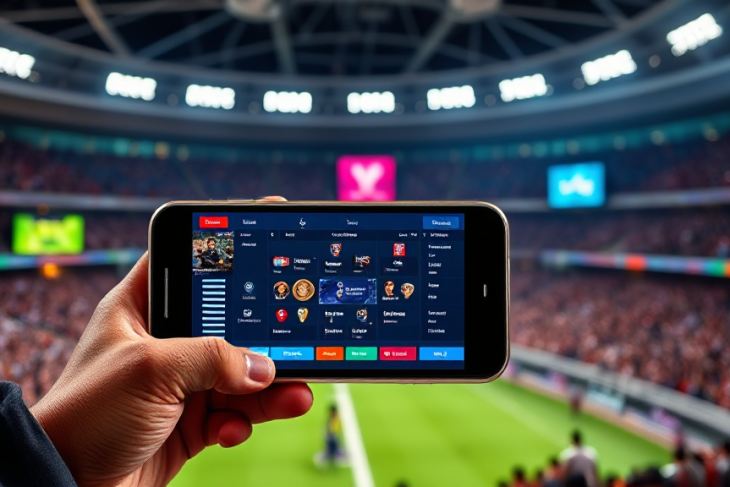
The sports area opens on a lobby screen organised by sport in a left rail and by competition in the main column. Each competition row expands into a list of events. An event row carries the participants, the start time, and a set of price buttons. Tapping a price button adds a selection to the bet slip, which is a persistent panel rather than a separate page.
The event screen is the deepest sports surface. It shows the full market list for a single fixture, grouped by market type, with a header carrying the fixture name and a live indicator where applicable. The bet slip panel docks to the right on desktop and slides up from the bottom on mobile. It carries the selection list, a stake field per selection, a combined-odds readout, and a place-bet control.
The bet-slip states
The slip has three visible states: empty, populated, and submitted. The empty state shows a short instruction and a link back to the lobby. The populated state shows the selections and the stake inputs. The submitted state replaces the inputs with a receipt summary and a reference number. Moving between states happens in place, without a page change.
The casino-style area: lobby, game shell, and results
The casino-style area opens on a lobby of tile grids, filterable by category and provider. Each tile carries a thumbnail, a title, and a provider mark. The lobby is paginated rather than infinitely scrolled, and the pagination control sits at the foot of the grid. A search field sits above the grid and filters tiles by title as text is entered.
Selecting a tile opens the game shell: a full-bleed frame with a top bar carrying the game title, a balance readout, and a return control. The shell is the same container for every game in the family, which means the surrounding chrome is consistent even where the game content differs. A history control inside the shell opens a results panel listing recent rounds with timestamps and outcomes.
The results and replay screens
The results panel is a table with round identifiers, stake, and outcome columns. Where a replay function exists, each row carries an expand control that opens a round-detail view. The detail view is read-only and returns to the results panel on close. The results panel itself returns to the game shell, not to the lobby, which keeps the user inside the game container until they choose the return control.
The promotions and support screens
The promotions screen is a list of offer cards, each with a title, a short description, a validity window, and a claim control. Claiming opens a confirmation screen that states the conditions in a scrollable panel and requires an explicit acceptance before the offer is applied. Claimed offers appear in a separate tab within the same screen, marked with their status.
The support screen is a contact hub: a searchable help index, a live-chat entry point, and an email form. The help index is a list of expandable questions, and each expansion happens inline. The live-chat entry opens a separate chat panel that persists across product screens once opened, which makes it the only support surface that is not modal.
How promotions and support intersect with the rest of the product
Promotion claims can originate from the promotions screen or from banners embedded in the sports and casino lobbies; both routes land on the same confirmation screen. Support entry points appear in the account hub, in the footer, and inside the bet-slip error state. The footer route is the only one available before login.
How the screens connect: navigation model and state
The navigation model is a hybrid of a persistent shell and nested routes. The shell carries the header, the product switcher, the wallet widget, and the account control. Nested routes replace the main content area without unloading the shell, which is why the balance readout remains visible across product screens. The bottom bar on mobile carries five destinations: home, sports, casino, wallet, and account.
State is carried in three ways. Session state (login, balance) lives in the shell and updates in place. Screen state (filters, pagination, expanded rows) resets when a route is left and re-entered. Transaction state (deposit receipts, bet receipts) persists in the history tables rather than in the screen that created it. This division explains why a user can leave a filtered lobby and return to an unfiltered one, but cannot lose a submitted bet.
Back behaviour and deep links
The back control returns to the previous route in the nested stack, not to the home screen. Deep links open the target screen with the shell already loaded, and where the target requires a session, the login screen appears as an interstitial and then forwards to the original target. The bet slip and the chat panel are the two elements that survive a route change; everything else is rebuilt per screen.
Limits of this inventory
This description covers the screens that are visible to a registered user on the standard build of tk999, as encountered in a single walkthrough. It does not cover A/B variants, regional builds, or screens that appear only under specific account states such as pending verification or restricted access. It also does not describe the content of games or the pricing of markets, only the containers in which they appear.
Screen inventories age quickly. Layouts are reordered, modules are added, and labels change without notice, so the value of this catalogue is in the structure it records rather than in any single screen. What it establishes is the sequence: landing, registration or login, account layer, wallet family, sports area, casino-style area, promotions and support, all held together by a persistent shell and a nested navigation stack. That sequence is the object this inventory set out to describe, and the description stops there.